
In today’s fast-paced digital world, converting a JPG screenshot to text has become an essential skill for students, professionals, and anyone who deals with information online. JPG screenshots are everywhere — from online articles to presentation slides, social media posts, and scanned documents. But having information trapped in an image can be frustrating.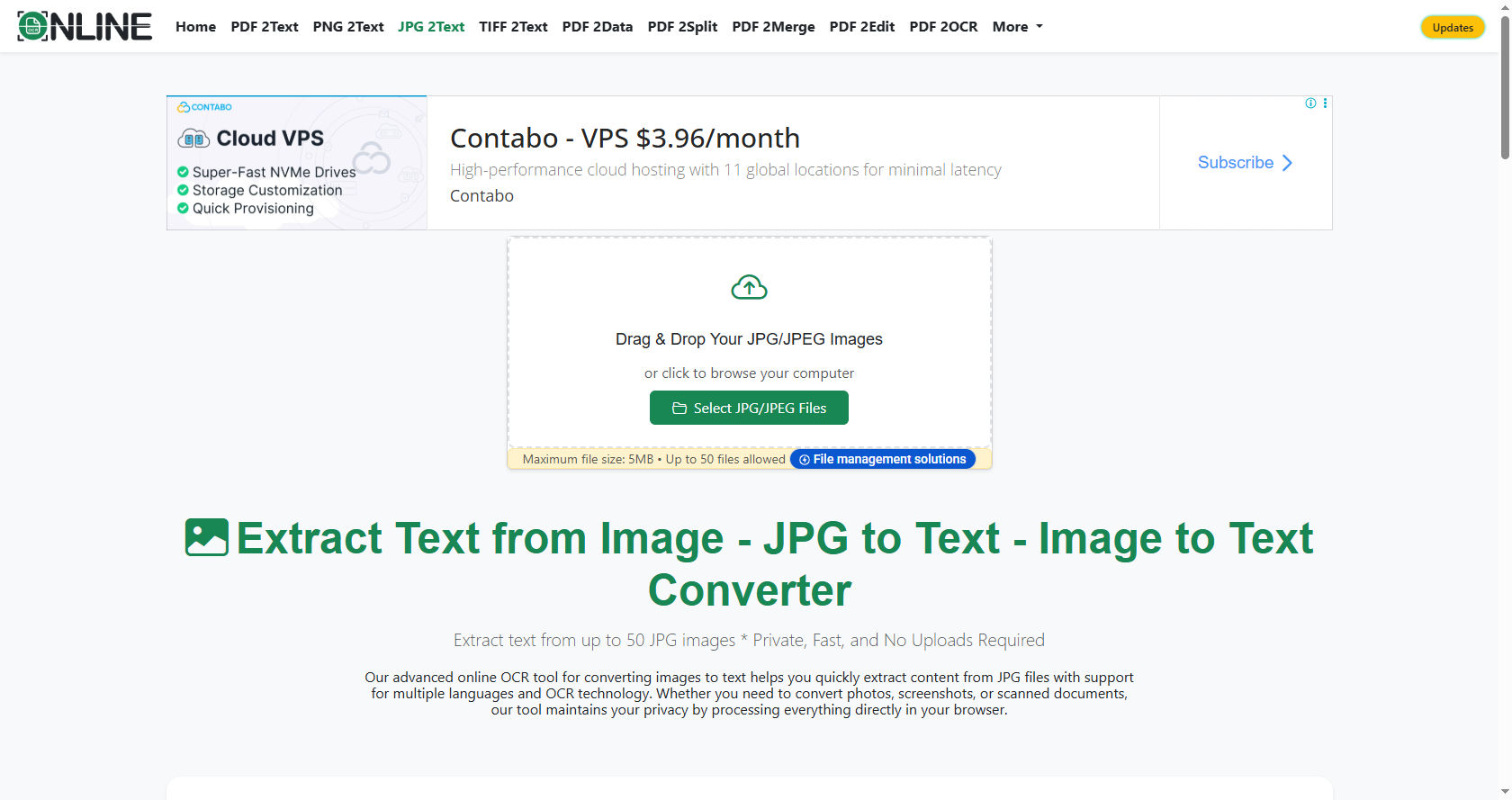
That is where JPG to Text comes in. This technology allows you to extract written content from images quickly and efficiently, making it much easier to use, edit, and store.
Using JPG to Text tools can save you time and reduce errors when you need to transfer information. Instead of manually typing out text from a screenshot, you can automate the process.
Whether it’s for school assignments, work reports, or personal notes, converting images into editable text can make life simpler and more organized.
Understanding JPG Screenshots
A JPG screenshot is essentially an image file that captures a specific screen content, whether from a computer, smartphone, or tablet. JPG is one of the most common image formats because it compresses image files while maintaining decent quality. Screenshots are widely used to save information quickly or capture moments that might otherwise be missed.
However, JPG screenshots have one major limitation: the text in them is not editable. For example, if you take a screenshot of a table from a website, you cannot copy and paste the data directly. Here, JPG to Text technology becomes invaluable. It allows you to transform these static images into dynamic, editable text that you can use anywhere.
How JPG to Text Works
The process of converting a JPG screenshot to text is based on Optical Character Recognition (OCR) technology. OCR is designed to recognize and read the characters in an image. It analyzes the shapes of letters and numbers and converts them into editable text that can be saved in formats like Word, PDF, or plain text.
Modern OCR tools are very accurate and can even recognize handwriting or text in multiple languages. When you use JPG to Text tools, the OCR software scans the image, detects text areas, interprets the characters, and outputs them in a readable format. Some tools even maintain the original layout, keeping tables, bullet points, and paragraphs intact.
Benefits of Converting JPG Screenshots to Text
Time-Saving
Manually typing text from a screenshot can take hours, especially for long documents. With JPG to Text technology, you can convert entire pages in seconds. This saves considerable time and allows you to focus on more important tasks like analysis or editing.
Accuracy
OCR technology has improved significantly over the years. Modern JPG to Text tools can recognize text with high accuracy, reducing the risk of errors that usually occur when typing manually. This ensures that your information is reliable and ready for use immediately.
Easy Editing
Once you have converted a JPG screenshot to text, you can edit it freely. You can correct mistakes, change formatting, or reorganize content. This flexibility is essential for creating professional reports, academic papers, or digital content.
Efficient Data Storage
Text files take up much less space than images. By converting screenshots to text, you can store vast amounts of information without worrying about file size. This is particularly useful for students and professionals who deal with many files daily.
Accessibility
Text files are more accessible than images. They can be read aloud using text-to-speech tools, searched for specific words, or translated into different languages. Converting JPG to Text makes information accessible to people with visual impairments or those who prefer working with text over images.
Applications of JPG to Text
Academic Use
Students often encounter situations where notes, study materials, or books are available as images. Using JPG to Text, they can extract content from these images and convert it into editable notes, summaries, or essays. This not only improves efficiency but also enhances learning by making content easier to organize and review.
Business Use
Professionals often need to extract data from reports, presentations, or invoices. JPG to Text tools make it simple to convert these images into editable documents for analysis, sharing, or record-keeping. This helps businesses save time and improve productivity.
Personal Use
Even for personal purposes, converting JPG screenshots to text can be helpful. You can extract text from recipes, travel guides, or personal documents and store them in a more convenient format. This makes personal organization much easier.
Legal and Official Documents
Lawyers, clerks, and administrative professionals often need to extract text from scanned contracts, agreements, or forms. JPG to Text tools allow them to quickly digitize documents while maintaining accuracy and legality.
Choosing the Right JPG to Text Tool
Selecting the best JPG to Text tool depends on your needs. Here are some factors to consider:
-
Accuracy: Look for tools with high OCR accuracy, especially if the text includes numbers, symbols, or multiple languages.
-
Speed: Some tools are faster than others, so choose one that can process large files quickly.
-
Formats Supported: Ensure the tool can save the converted text in the format you need, such as Word, PDF, or plain text.
-
Layout Preservation: If your JPG contains tables, charts, or bullet points, select a tool that maintains the original layout.
-
Ease of Use: A simple interface can save time and make the conversion process smoother.
Popular tools for JPG to Text conversion include both online services and desktop applications. Some even offer mobile apps, allowing you to convert screenshots on the go.
Tips for Better JPG to Text Conversion
Use High-Quality Screenshots
Higher resolution images result in better OCR accuracy. Blurry or low-quality screenshots may cause errors in text recognition. Always ensure your JPG screenshots are clear and readable.
Choose the Right Language Setting
Many JPG to Text tools support multiple languages. Make sure you select the correct language before conversion to avoid mistakes in recognition.
Proofread the Converted Text
Even though OCR technology is highly accurate, it is not perfect. Always review the converted text to correct minor errors or formatting issues.
Use Batch Processing
If you have multiple screenshots, use tools that support batch conversion. This saves time and allows you to process many files simultaneously.
Common Challenges and How to Overcome Them
Poor Image Quality
Blurry or dark images can reduce OCR accuracy. To overcome this, enhance the image using photo editing tools or take a higher-quality screenshot.
Complex Layouts
Screenshots with tables, charts, or multi-column text can confuse some OCR tools. Use software that offers layout recognition or manually adjust formatting after conversion.
Handwritten Text
Handwritten notes can be challenging for JPG to Text tools. Advanced OCR tools with handwriting recognition can help, but some manual editing may still be required.
Multiple Languages
Screenshots containing more than one language may require a tool that supports multilingual OCR. Ensure the software can detect and convert all languages accurately.
Advanced Features of Modern JPG to Text Tools
Cloud-Based Conversion
Many tools now offer cloud-based JPG to Text conversion, allowing you to upload and convert images online without installing software. This is convenient for users who want quick access from any device.
Integration with Other Apps
Some OCR tools integrate with applications like Google Docs, Microsoft Word, and cloud storage services. This makes it easy to edit, save, and share converted text without extra steps.
AI-Powered OCR
Modern tools use AI to improve text recognition, even for complex layouts and handwriting. AI-powered OCR can identify text contextually, enhancing accuracy and usability.
Multi-Platform Support
With mobile apps, desktop applications, and web tools, you can perform JPG to Text conversion anywhere, anytime. This flexibility is particularly useful for students and professionals on the go.
Practical Examples of JPG to Text Usage
Imagine you are a student preparing for exams. You have several screenshots of important notes from your online course. Instead of rewriting them manually, you use JPG to Text tools to extract the text, organize it in a Word document, and highlight key points. This saves hours and improves your study efficiency.
For a business professional, consider receiving scanned invoices from multiple suppliers. By converting these invoices from JPG to Text, you can quickly input the data into accounting software without manual entry. This reduces errors and speeds up workflow.
Even in everyday life, JPG to Text can be useful. You might take a screenshot of a recipe from social media. By converting it to text, you can save it in a digital document, adjust ingredients, or share it with friends easily.
Security and Privacy Considerations
When using JPG to Text tools, it’s important to consider security. If the screenshots contain sensitive information, ensure you use tools that guarantee privacy. Avoid untrusted online converters that may store your data. Desktop or offline OCR software is safer for confidential documents.
Additionally, always review the converted text for accuracy before sharing it. Even minor errors in financial data, legal documents, or academic work can have significant consequences.
Future of JPG to Text Technology
The future of JPG to Text is promising. With advancements in AI and machine learning, OCR accuracy is improving constantly. Future tools may offer real-time text extraction from screenshots, video frames, and even augmented reality interfaces.
We can also expect better support for complex layouts, multilingual text, and handwriting. This means that in the near future, converting JPG screenshots to text will be faster, easier, and more accurate than ever before.
Conclusion
Converting JPG screenshots to text is more than a convenience; it is a powerful tool that enhances productivity, accessibility, and efficiency. JPG to Text technology allows students, professionals, and everyday users to transform static images into editable, usable content. From saving time and reducing errors to improving data organization and accessibility, the benefits are undeniable.
Choosing the right tool, using high-quality images, and proofreading the output can maximize the effectiveness of JPG to Text conversion. As technology continues to evolve, this process will become even more seamless and accurate.
Whether you are a student compiling notes, a professional managing documents, or someone looking to organize personal information, JPG to Text is an indispensable solution. It bridges the gap between static screenshots and editable text, making your digital life smoother, faster, and more productive.
By understanding its applications, advantages, and future potential, you can fully leverage JPG to Text technology to save time, improve accuracy, and increase efficiency in all areas of your digital activities.